Your design docs look different across teams. Some repos forget the QA gate. Integrations (Jira, CI) are half-baked and duplicated as bash scripts. Onboarding a new engineer requires five manual steps to wire the same set of templates, commands, and pipelines.
Spec Kit exposes four primitives that solve these problems in a structured, maintainable way:
- Presets fix content and wording (make docs consistent).
- Extensions add behavior and integrations (run code, call Jira/CI).
- Workflows orchestrate multi-step, resumable pipelines (add gates and state).
- Bundles package and version a curated set of the above (one-command onboarding).
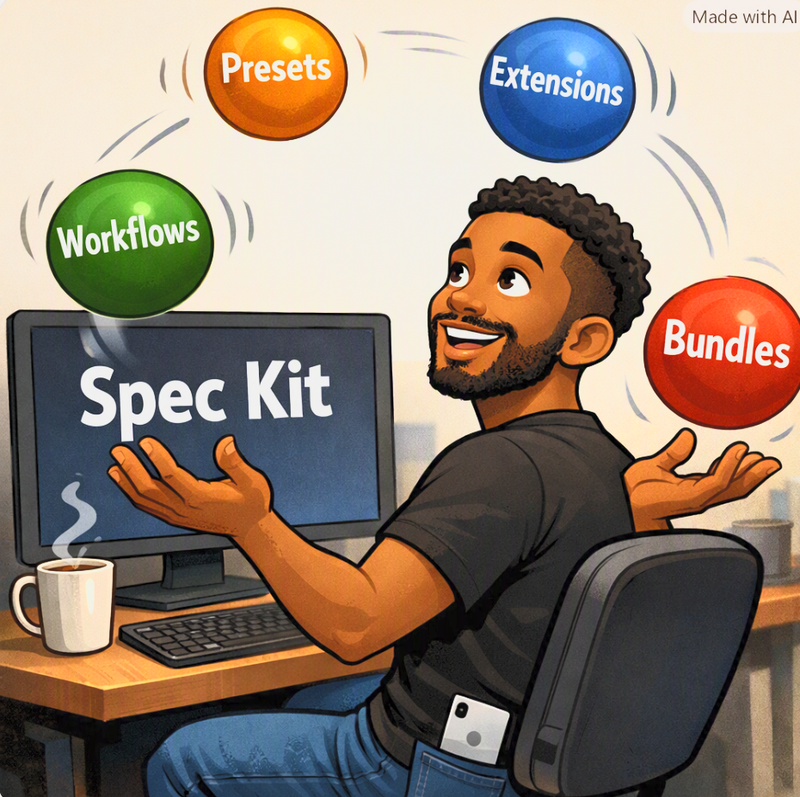
This post explains each primitive plainly, shows concrete manifests and examples (CLI + Visual Studio Code), and gives authoring, troubleshooting, and operational guidance so you can pick the right tool for the job.
At-a-glance summary
- Preset — content & prompt overrides (templates/command text). Use to change wording, templates, or organization-wide conventions without changing core code.
- Extension — new capabilities (commands, integrations, hooks). Use to add Jira, git automation, quality gates, or domain-specific behaviors.
- Workflow — a resumable, multi-step YAML pipeline that orchestrates Spec Kit commands, shell steps and human gates.
- Bundle — a versioned, shareable package that installs a curated set of presets, extensions, workflows, and steps together for a team/role.
What they change and when to pick them
- Need different wording, templates, or company style? → Preset.
- Need new integrations, commands, or hooks that run code? → Extension.
- Need to automate a repeatable multi-step process (with gates and state)? → Workflow.
- Need to ship a set of the above to teammates as one installable artifact? → Bundle.
Deep dive: Presets — change what the agent writes
What a preset does
- Presets override templates and prompt text used by Spec Kit’s agent. They are focused on content: wording, section structure, localization, default fields and the text the CLI uses when creating specs/plans/tasks.
- Presets do not (normally) run code, call external services, or change engine behavior.
When to use a preset
- Enforce company style, legal or compliance wording.
- Provide localized templates (Spanish, Japanese).
- Change default structure (one-pager vs full SDD).
- Adjust agent prompt wording for tone/conciseness.
Concrete preset manifest (example)
File path: .specify/presets/company-style.yaml
priority: 10
name: company-style
description: "Company legal & style overrides; Spanish localization for Latin America teams"

templates:
  spec.summary: "Propósito corto (1–2 oraciones)"
  spec.description: |
    Descripción:
    - Objetivo: {{ inputs.goal }}
    - Stakeholders: {{ inputs.stakeholders | join(', ') }}
  spec.security: |
    Consideraciones de seguridad:
    - Autenticación: se requiere 2FA para nuevos endpoints
    - Datos sensibles: cifrado en tránsito y en reposo
How presets stack
- Multiple presets can be active. They stack by numeric priority: lower number = higher precedence. A global company preset (priority 10) can be overridden by a repo-level preset with priority 5.
- When a template ID is present in multiple presets, the lowest-numbered preset wins for that template only.
Authoring and publishing a preset — step-by-step
- Create a local preset file in .specify/presets/ (YAML or JSON).
- Test locally by running a generate command that would use the template. Example:
- CLI: specify plan –input spec=”Add login”
- Check the generated text for your new wording.
- If satisfied, publish the preset to your Spec Kit catalog (your org’s registry) so teams can add it with specify preset add company-style@1.0.0.
- When updates are needed, bump the manifest version and publish a new release. Consumers can upgrade with specify preset update company-style.
VS Code: how to install and test a preset
- Terminal:
- Open your workspace in VS Code.
- Open integrated terminal (Ctrl+`).
- Run: specify preset add company-style
- UI (Spec Kit Companion):
- Open the Spec Kit sidebar.
- Select Presets → Search → company-style → Install.
- Use the “Preview” or “Generate” action in the sidebar to see the template applied.
Troubleshooting common preset issues
- Preset not taking effect: check priorities (lower wins), ensure the preset ID and version installed, and confirm the template ID you modified matches the agent’s template ID (typos happen).
- Conflicting overrides: list installed presets and remove/adjust the one you don’t want (specify preset list; specify preset remove ).
Deep dive: Extensions — add behavior and integrations
What an extension does
- Extensions are plugins that can register new CLI commands, provide templates, offer hooks, and run code. They can call external services (Jira, test runners), enforce checks, or modify repository state (branch creation, commits).
- Use extensions when you need logic beyond textual overrides.
Example extension manifest (minimal)
File: extension.yaml
id: git-jira
version: 0.1.0
name: "Git + Jira integration"
description: "Creates branches, creates Jira tickets, and wires plan acceptance to ticket creation."

commands:
  - id: git.create-branch
    command: specify git branch-for-spec
  - id: jira.create-issue
    command: specify jira create-issue --input summary="{{ inputs.summary }}"

hooks:
  onPlanAccepted: jira.create-issue

permissions:
  network:
    - "jira.example.com"
filesystem:
  read:
    - ".git"
  write:
    - ".git/refs/heads"
Authoring an extension — quick guide
- Scaffold an extension (your preferred runtime: Node, shell scripts, or compiled binary). Keep it small and well-scoped.
- Register commands in the manifest and map them to your executable or script.
- Implement and mock external calls for local testing.
- Test in a local repo:
- Install locally: specify extension add ./path/to/extension
- Run the new command: specify git create-branch –input spec=”…”
- Publish to catalog once reviewed.
Example behavior: create branch + Jira ticket when a plan is accepted
- Extension registers a hook onPlanAccepted.
- When a workflow step marks the plan accepted, the extension is invoked to create a Jira ticket and a branch.
- Because extensions can run code or call networks, follow security practices (see Security section).
VS Code: installing and using an extension
- Terminal:
- Open integrated terminal (Ctrl+`).
- Run: specify extension add git-jira
- UI (Spec Kit Companion):
- Presets/Extensions view → Search “git-jira” → Install.
- The extension’s commands will show up in the Command Palette (Ctrl+Shift+P) under Spec Kit commands; or the companion UI exposes buttons like “Create Jira issue”.
Troubleshooting extensions
- Network permissions denied: check the extension manifest’s network permission and your environment firewall.
- Command missing after install: ensure the extension installed successfully and restart the terminal/VS Code if necessary.
Deep dive: Workflows — orchestrate multi-step, resumable pipelines
What a workflow does
- A workflow is a YAML pipeline that composes agent steps, shell steps, and human gates. Workflows persist run state so you can pause for review and resume later.
- Use workflows to enforce reproducible processes: assess → plan → implement → test → sign-off.
Expanded example workflow (detailed)
File: sdd-pipeline.yml
name: sdd-pipeline
inputs:
  spec:
    type: string
    required: true

steps:
  - id: assess
    type: agent
    command: specify assess --input spec="{{ inputs.spec }}"
    outputs:
      summary: string

  - id: plan
    type: agent
    command: specify plan --input spec="{{ steps.assess.summary }}"
    outputs:
      branch: string
      plan_url: string

  - id: create-branch
    type: shell
    command: |
      git checkout -b "{{ steps.plan.branch }}"
      git push -u origin "{{ steps.plan.branch }}"
    continueOnError: false

  - id: run-tests
    type: shell
    command: |
      ./run-tests.sh --report results.json
    outputs:
      test_report: results.json
    continueOnError: false

  - id: review
    type: gate
    approvers:
      - "team-lead@example.com"
    timeout: "72h"
Key workflow features demonstrated
- Inputs and typed outputs — later steps can reference earlier outputs (templating with {{ }}).
- Mix of agent and shell steps.
- Human gate with approvers and timeout.
- Persisted run state to allow resumption.
Run workflows — CLI and VS Code
- Install catalog workflow:
specify workflow add sdd-pipeline - Run from catalog:
specify workflow run sdd-pipeline –input spec=”Add user authentication” - Run a local workflow YAML:
specify workflow run ./sdd-pipeline.yml –input spec=”Add payment flow”
VS Code:
- Terminal: run the same specify workflow commands.
- UI (Spec Kit Companion):
- Open Workflows in the sidebar.
- Choose a catalog workflow or point to a local YAML.
- Click “Start run” and follow the run UI to see step outputs and approve gates.
Authoring a workflow — best practices
- Validate inputs: declare required inputs and types.
- Make steps idempotent where possible (re-running a branch creation should be safe or fail cleanly).
- Persist minimal but useful outputs for later steps (e.g., branch name, plan URL).
- Add clear error handling: use continueOnError judiciously and provide logs for shell steps.
- Test locally by running the workflow with small inputs and stepping through the UI or CLI.
Troubleshooting workflows
- Workflow fails at shell step: open the run’s step logs, reproduce the commands locally in the terminal, fix failing command or environment.
- Gate never approved: ensure approvers are reachable emails and the companion UI sends notifications; approvers can resume runs from VS Code or CLI.
Deep dive: Bundles — package and share a curated stack
What a bundle does
- A bundle is a versioned artifact that declares a set of presets, extensions, workflows, and steps to install together. Bundles don’t create new primitives — they package and pin existing ones so teams get a tested configuration with one command.
- Bundles record provenance of what they installed for clean removal and upgrades.
Example bundle manifest
File: .specify/bundles/backend-team.yaml
id: backend-team
version: 1.0.0
name: "Backend Team Starter"
description: "Preset, extensions, and workflows for backend engineers."

presets:
  - company-style@10
  - backend-layout@5

extensions:
  - git@2.3.0
  - jira@1.1.0

workflows:
  - sdd-pipeline@1.0.0

metadata:
  installedBy: "bundle-maintainer@example.com"
  date: "2026-10-01"
Install / lifecycle commands
- Install a bundle:
specify bundle install backend-team
(alias: specify bundle add backend-team) - List installed bundles:
specify bundle list - Upgrade a bundle:
specify bundle update backend-team –version 1.1.0 - Uninstall/remove a bundle:
specify bundle remove backend-team
What bundles actually do in a repo
- Install referenced presets, extensions, and workflows into the project.
- Create metadata in .specify/bundles/ to record installed components and pinned versions.
- Allow a single remove command to uninstall everything the bundle introduced.
When to use a bundle
- Onboarding new hires or new projects with a single command.
- Ensuring consistent, pinned tooling across teams.
- Distributing proven configurations for compliance or role-specific setups.
Bundles: VS Code experience
- Terminal:
- Open integrated terminal (Ctrl+`).
- Run: specify bundle install backend-team
- UI (Spec Kit Companion):
- Bundles view → Search → backend-team → Install.
- The UI shows progress and created files; it lists the installed components in a panel.
Security, testing, and operational guidance
Vetting extensions
- Treat extensions like any plugin: require code review, run static analysis, and audit network permissions.
- Use least-privilege: only grant network access to specific hosts used by the extension.
- Use CI sandboxing: run untrusted extensions in CI jobs with restricted tokens and ephemeral credentials.
Testing workflows and presets
- Presets: test by generating artifacts locally and comparing before/after outputs. Use a diff tool to confirm only intended changes.
- Workflows: dry-run where possible. Validate inputs and run with small, safe inputs. Test gate behavior by simulating approvals.
- Extensions: unit tests and integration tests against mocked APIs. Provide a local test harness script.
Bundles and provenance
- Always pin versions in bundle manifests to avoid unexpected breaking changes.
- Use bundle metadata to record who installed the bundle and when to enable audits and rollbacks.
Programmatic integration: invoking specify from C#
If you need to call the specify CLI from other tools or CI, capture stdout/stderr. Example (async):
using System.Diagnostics;

var psi = new ProcessStartInfo {
    FileName = "specify",
    Arguments = "workflow run sdd-pipeline --input spec=\"Build login\" --json",
    RedirectStandardOutput = true,
    RedirectStandardError = true,
    UseShellExecute = false,
    CreateNoWindow = true
};

using var proc = Process.Start(psi);
string stdout = await proc.StandardOutput.ReadToEndAsync();
string stderr = await proc.StandardError.ReadToEndAsync();
proc.WaitForExit();
// stdout contains run result (or --json output); stderr contains errors.
In VS Code, run this same program from the integrated terminal or incorporate it into a task that runs on save or during CI.
VS Code practical steps — exact actions users will see
- Open Command Palette (Ctrl+Shift+P). Search “Spec Kit: Install Preset” or “Spec Kit: Run Workflow”.
- Spec Kit Companion sidebar panels:
- Presets: search, preview, install.
- Extensions: list, view commands, install.
- Workflows: catalog view, run, see run state and step logs.
- Bundles: browse, install, view installed metadata.
- Terminals use standard CLI commands; the UI calls the same CLI under the hood.
Authoring tutorials (concise walkthroughs)
Preset authoring walkthrough (quick)
- Create file: .specify/presets/company-style.yaml with your overrides.
- Test: specify plan –input spec=”Add login” and confirm the summary and security sections are replaced.
- Publish to catalog and instruct teams: specify preset add company-style@1.0.0.
Extension authoring walkthrough (quick)
- Scaffold a small Node or shell extension and manifest (extension.yaml).
- Add a command that runs a script to call Jira’s API (use environment tokens).
- Test by installing locally: specify extension add ./my-extension.
- Publish after security review.
Workflow authoring walkthrough (quick)
- Start from sdd-pipeline.yml example above.
- Run locally: specify workflow run ./sdd-pipeline.yml –input spec=”…”
- Step through the run in VS Code and fix templating issues.
- Publish and add to a bundle for distribution.
Bundle authoring walkthrough (quick)
- Create bundle manifest listing pinned components.
- Run: specify bundle install ./backend-team.yaml locally to validate the install process.
- Publish the bundle to the catalog. Team members then run specify bundle install backend-team.
Migration patterns and practical advice
- Start with presets when you only need wording changes (low risk).
- When you find repeating scripts or ad-hoc tools across repos, move them into an extension.
- When a sequence of steps becomes common and should be reproducible, author a workflow.
- When multiple teams need the same combination, wrap all pieces into a bundle.
FAQ / Troubleshooting quick hits
- Preset not applied? Check priority: specify preset list shows installed presets and priority.
- Workflow step failed — how to debug? View step logs in the CLI run output or VS Code run panel; reproduce the shell step locally.
- How do I remove a bundle? specify bundle remove will uninstall components that bundle recorded.
- An extension requires network access — is it safe? Review its permissions in the manifest and audit its code. Use least-privilege credentials.
Glossary
- Preset: content and prompt overrides for templates and text.
- Extension: plugin that adds commands, hooks, and runtime behavior.
- Workflow: a persisted YAML pipeline combining steps, shell commands, and gates.
- Bundle: a versioned package that installs presets, extensions, and workflows together.
Quick CLI reference
- Add preset: specify preset add
- Add extension: specify extension add
- Add workflow from catalog: specify workflow add
- Run workflow: specify workflow run –input spec=”…”
- Run local workflow YAML: specify workflow run ./my-workflow.yml –input spec=”…”
- Install bundle: specify bundle install
- List bundles: specify bundle list
Closing and next steps
Presets, extensions, workflows, and bundles complement each other:
- Presets shape content and tone.
- Extensions implement behavior and integrations.
- Workflows orchestrate repeatable, resumable processes.
- Bundles distribute curated stacks and keep provenance.
Note: The initial draft of this post was written by BlogWriter and then
edited by Jesse Liberty.
Illustrations by Copilot. Caution: LLMs make mistakes; this post is offered as is.